Cleanvoice AI is a specialized artificial intelligence audio tool designed to remove filler words, mouth sounds, and stuttering from podcast and audio recordings automatically.
Introduction
Cleanvoice AI is a specialized artificial intelligence audio tool designed to remove filler words, mouth sounds, and stuttering from podcast and audio recordings automatically.
Unlike general-purpose audio editors (DAWs) which require manual cutting and splicing, Cleanvoice focuses entirely on the cleanup process. It analyzes audio tracks to detect and eliminate “um’s,” “ah’s,” dead air, and clicking sounds while preserving the natural flow and pacing of the speech.
Its goal is to save podcasters and creators hours of tedious editing time by handling the mechanical “cleanup” work instantly, allowing them to focus on the creative content.
Filler Word Removal
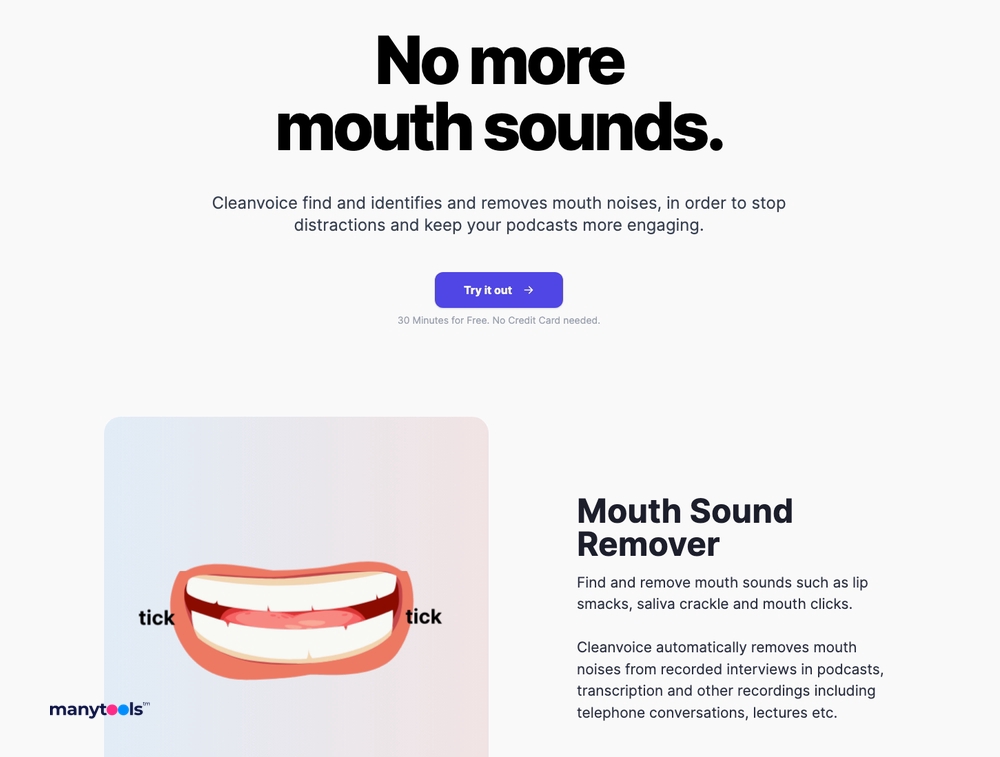
Mouth Sound Removal
Dead Air Remover
Timeline Export
Multitrack Support
Review
Cleanvoice AI is known for its laser focus on audio hygiene and efficiency. Its primary strength is the high-accuracy detection of filler words and mouth sounds, which it removes without leaving the jarring “cuts” often associated with automated editing. A standout feature for professionals is the ability to export timelines (to Adobe Audition, DaVinci Resolve, etc.), allowing editors to use the AI’s work as a non-destructive starting point.
While it lacks the text-based video editing features of tools like Descript, its specialized algorithms for cleaning up raw voice recordings make it an essential, time-saving utility for any serious podcaster or voiceover artist.
Features
Smart Filler Removal
Uses AI to identify filler words and removes them only when it sounds natural, avoiding "choppy" edits.
Mouth Sound & Click Removal
Specifically targets high-frequency clicks and lip smacks that are difficult to remove manually without affecting the voice.
Timeline Export
Instead of just a flattened audio file, users can download an export file for Adobe Audition, DaVinci Resolve, or Audacity, preserving the original edit points.
Background Noise Remover
Reduces constant background hiss or hum to isolate the speaker's voice.
Multitrack Sync
When uploading multiple tracks from the same recording session, Cleanvoice processes them together to ensure they stay perfectly aligned in time.
Breath Remover
Detects loud intakes of breath and lowers their volume or removes them to create a smoother listening experience.
Best Suited for
Podcasters
Ideal for cutting down editing time by automating the removal of the most common speech artifacts.
Audio Editors
Perfect for generating a "rough cut" timeline that cleans up the basics before creative mixing begins.
Voiceover Artists
Excellent for quickly cleaning up dry mouth sounds and breaths from recordings.
Interviewers
Great for cleaning up guest audio tracks that may have poor pacing or excessive filler words.
Webinar Hosts
A strong tool for polishing recorded live streams to make them sound more professional for replay.
Video Creators
Useful for cleaning up voiceovers or interview audio before syncing it to video.
Strengths
Mouth sound and stutter removal algorithms are highly specialized.
Timeline export features allow professional editors to verify AI cuts non-destructively in their preferred DAW.
Dramatically reduces editing time.
Simple drag-and-drop interface requires no technical audio knowledge.
Weakness
Limited fine-tuning controls.
Cost per hour can be high for hobbyists compared to one-time purchase software.
Getting started with: step by step guide
The Cleanvoice workflow is designed to be a “pre-processing” step before final mixing or a “one-click fix” for simple projects.
Step 1: Upload Audio
Go to the Midjourney website and click “Join the Discord.” Because Midjourney runs from Discord, you will need to have an account.
Step 2: Select Cleanups
The user uploads single or multiple audio tracks (MP3, WAV, M4A) to the web dashboard.
Step 3: AI Processing
The platform analyzes the audio waveform. This usually takes a few minutes depending on file length.
Step 4: Review Edits
The user can listen to “Before/After” samples of specific cuts to ensure the AI isn’t being too aggressive.
Step 5: Adjust Settings
If needed, the user can adjust the sensitivity of the silence remover or choose to keep certain filler words.
Step 6 : Export
The user downloads the cleaned audio files (WAV/MP3) or exports a Timeline File (XML/EDL) to finish the edit in a tool like Adobe Premiere or Audition.
Frequently Asked Questions
Q: Does Cleanvoice remove all filler words?
A: It attempts to remove as many as possible, but it prioritizes natural sounding speech. If removing a specific “um” would make the sentence sound robotic or cut off, the AI may leave it in.
Q: Can I use Cleanvoice for video files?
A: Cleanvoice accepts audio files. If you have a video, you typically export the audio, clean it in Cleanvoice, and then sync it back, or use the Timeline Export to apply the cuts to your video editor.
Q: What is the benefit of "Timeline Export"?
A: It allows you to import the cuts Cleanvoice made directly into software like Adobe Premiere or Audition. This is “non-destructive,” meaning you can adjust or undo any specific AI edit later.
Q: Does it work with multiple speakers?
A: Yes, Cleanvoice supports Multitrack Uploads. It identifies different speakers on different tracks and cleans them individually while keeping the timing synchronized.
Q: Is there a free plan?
A: Cleanvoice offers a Free Trial (30 minutes). After that, you must purchase credits or a subscription; there is no perpetual free tier for ongoing use.
Q: How does it handle accents?
A: Cleanvoice supports multiple languages and accents. You can select the language of your audio to help the AI better identify filler sounds specific to that language.
Can I remove mouth sounds like lip smacking?
A: Yes, this is a specific feature. The Mouth Sound Remover targets the high-frequency clicking and smacking noises often picked up by sensitive microphones.
Q: What happens to my unused credits?
A: On subscription plans, unused credits typically roll over to the next month (up to a certain limit, e.g., 2x or 3x your monthly plan allowance).
Q: Is my audio data secure?
A: Cleanvoice states that files are processed securely and are deleted from their servers after a set period to ensure user privacy.
Q: Can I use it for music production?
A: Cleanvoice states that files are processed securely and are deleted from their servers after a set period to ensure user privacy.
Pricing
Cleanvoice operates on a subscription and pay-as-you-go model based on the hours of audio processed. Users can choose a monthly subscription for recurring needs or buy credit packs for one-off projects. There is a free trial (usually 30 minutes) to test the quality of the cleanup.
Subscription 10
$10/month
Unlimited filler/noise removal, Timeline Export, Multitrack support.
Subscription 30
$30/month
Best for regular podcasters, lower cost per hour.
Pay As You Go
$10/month
Credits valid for 2 years, access to all features.
Alternatives
Descript
A comprehensive audio/video editor that edits via text transcript; includes "Studio Sound" and filler word removal but is a full creative suite.
Adobe Podcast (Enhance)
dobe Podcast (Enhance): A tool specifically for speech enhancement and noise reduction, though it offers less granular control over specific filler words than Cleanvoice.
Izotope RX
The industry-standard professional software for audio repair, offering manual control but with a very steep learning curve and high price.
Share it on social media:

Cleanvoice AI
Sale Has Ended