AI Commands
Introduction
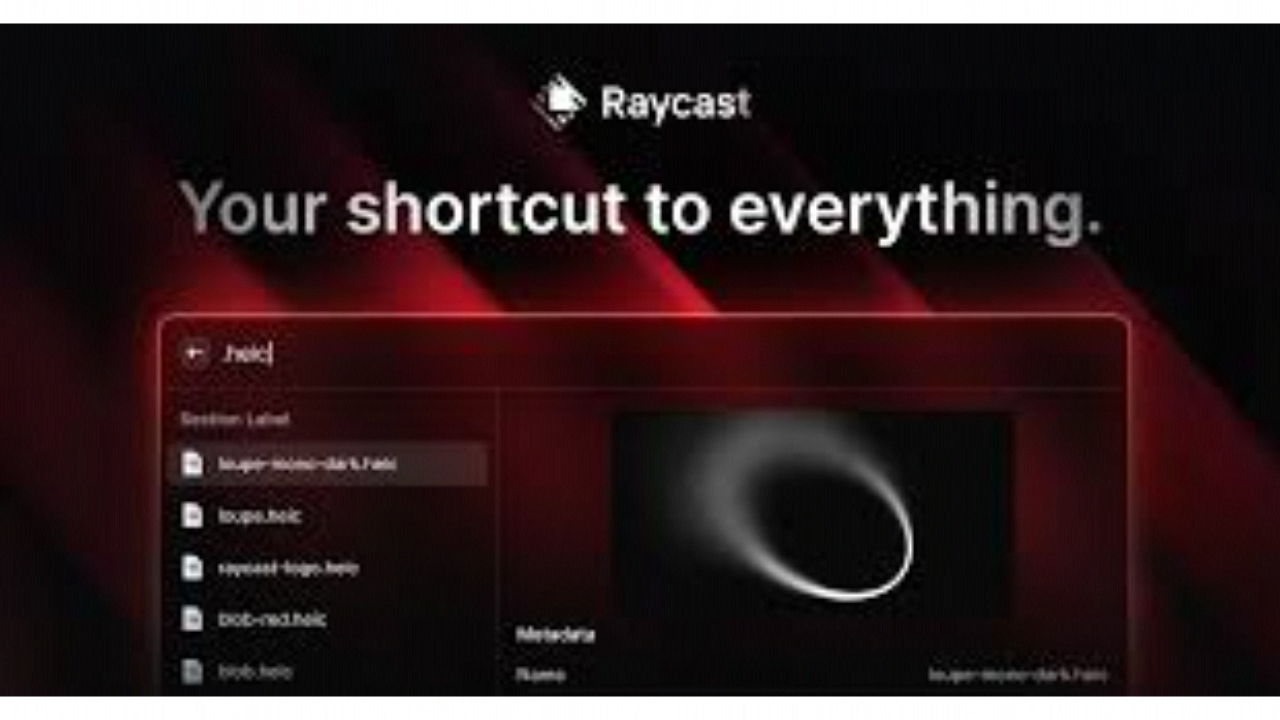
In 2026, the best interface is the one you don’t see. Raycast AI lives in the background of your Mac, waiting for a single keystroke (Cmd + Space or your custom shortcut) to turn a vague idea into a finished product. The 2026 refresh marks a shift from “Chatting with AI” to “Commanding AI”. With the introduction of AI Agency and Skills, Raycast has moved beyond being a search bar; it is now a digital foreman that coordinates between your apps, your files, and the world’s most powerful LLMs. It is designed for the “Flow State”, a tool for professionals who refuse to take their hands off the keyboard to navigate menus or search for files.
Parallel Multi-Chat
AI Commands
Skills-Ready
1000+ Extensions, Cloud Sync
Review
Raycast AI isn’t just a “launcher” anymore; as of the 2026 refresh, it has evolved into a comprehensive AI Orchestration Layer for macOS and iOS. While it started as a faster alternative to Spotlight, the 2026 version centers on AI Commands—reusable, hotkey-triggerable prompts that can fix grammar, generate code documentation, or summarize text across any application. By integrating with the latest models from OpenAI (GPT-4o) and Anthropic (Claude 3.5), Raycast provides a “model-agnostic” experience where users can swap the underlying “brain” based on the task.
The standout feature of the 2026 refresh is Parallel Background Chats and Live Activity support. Users can now run multiple AI tasks simultaneously in the background while working on other things, with real-time progress updates appearing in the macOS Menu Bar or iOS Dynamic Island. While the $20/month “Advanced AI” tier is a premium investment, its ability to act as a local agent, using “Skills” to interact with your file system, GitHub, Jira, and Slack, makes it the most efficient way to interact with a computer in 2026.
Features
AI Commands
Create custom, one-key automations to transform text, modify data, or generate documentation instantly.
Parallel Background Chats
Run multiple complex AI queries at once with Live Activity support, so you never have to wait for a single response.
AI Skills & Agency
Install specialized "skills" from the Raycast Store that allow your AI to perform actions inside apps like GitHub, Jira, and Notion.
Contextual Quick AI
Trigger the AI from the search bar or via a pull-up gesture on iOS to get instant answers without leaving your current app.
Floating Calculator History
A new 2026 widget that tracks complex math expressions and time zone conversions on the go.
Cross-Device Pro Sync
Keeps your custom themes, snippets, AI commands, and chat history perfectly in sync across Mac, Windows, and iOS.
Best Suited for
Software Engineers
Automating documentation, refactoring code, and managing Jira/GitHub tickets via the command palette.
Product Managers
Summarizing long Slack threads and Notion docs into actionable briefs using AI Commands.
Content Creators
Polishing UX copy, fixing grammar, and generating social media drafts across any writing app.
Power Users & "Flow" Seekers
Individuals who want to control their entire digital life with keyboard shortcuts and minimal app-switching.
Teams
Sharing snippets, custom commands, and AI presets across a synchronized organization.
Strengths
Unrivaled Speed
Model Flexibility
Infinite Extensibility
Privacy-Conscious
Weakness
Steep Learning Curve
Feature Gating
Getting Started with Raycast AI: Step-by-Step Guide
Step 1: Install and Hotkey
Download Raycast and set your primary hotkey. Most users replace the default macOS Spotlight (Cmd + Space) with Raycast.
Step 2: Initialize AI Commands
Open the Command Palette and search for “AI Commands.” Try “Fix Spelling and Grammar” on a selected block of text to see the magic in action.
Step 3: Connect Your Skills
Visit the Raycast Store and install the “Skills” or “AI Agency” extensions. Link your GitHub or Slack accounts to allow the AI to “act”.
Step 4: Launch Background Tasks
Start a complex reasoning task in the Chat. Use the Background Chat feature to keep working while the AI generates the result in your Menu Bar.
Step 5: Sync to Mobile
Download the Raycast iOS app. Your Mac’s AI commands and calculator history will automatically sync to your mobile widgets.
Frequently Asked Questions
Q: Can I use Raycast on Windows?
A: Yes! As of late 2025/early 2026, Raycast has expanded to Windows and iOS, with full feature parity for AI Commands and Pro Sync.
Q: Do I need to provide my own API keys?
A: No. Raycast Pro manages the API connections for you. However, you can use custom extensions to link your own keys if you prefer specialized models.
Q: What is a "Skill"?
A: A Skill is a piece of code that gives the AI a “hand.” It allows the AI to perform a specific action, like “create a GitHub issue” or “send a Slack message”.
Pricing
Raycast pricing has standardized into three tiers to accommodate individuals and growing organizations.
| Plan | Monthly Cost | Key Benefits |
| Free | $0 | Clipboard History, Calculator, Snippets, and basic Raycast AI. |
| Pro | $10 | Cloud Sync, Custom Themes, Unlimited Notes, and standard AI access. |
| Pro + Advanced AI | $20 | Access to GPT-4o/Claude 3.5, Parallel Chats, and AI Agency/Skills. |
| Teams | $15/user | Shared snippets, shared AI commands, and team-based extension management. |
Alternatives
Alfred
The long-standing Mac launcher rival; more customizable in terms of complex "workflows" but currently lacks Raycast's native, deep AI integration.
Spotlight (macOS 16+)
Apple’s native solution, which is increasingly "Siri-Agent" enabled, though less focused on the developer/power-user ecosystem.
Limitless
A specialized "pendant and app" combo focused on meeting memory rather than desktop command-line productivity.
Share it on social media: